TLDR
Three signal paths cover almost every server room console decision, and picking the wrong one usually shows up as a black screen or a laggy mouse on install day.
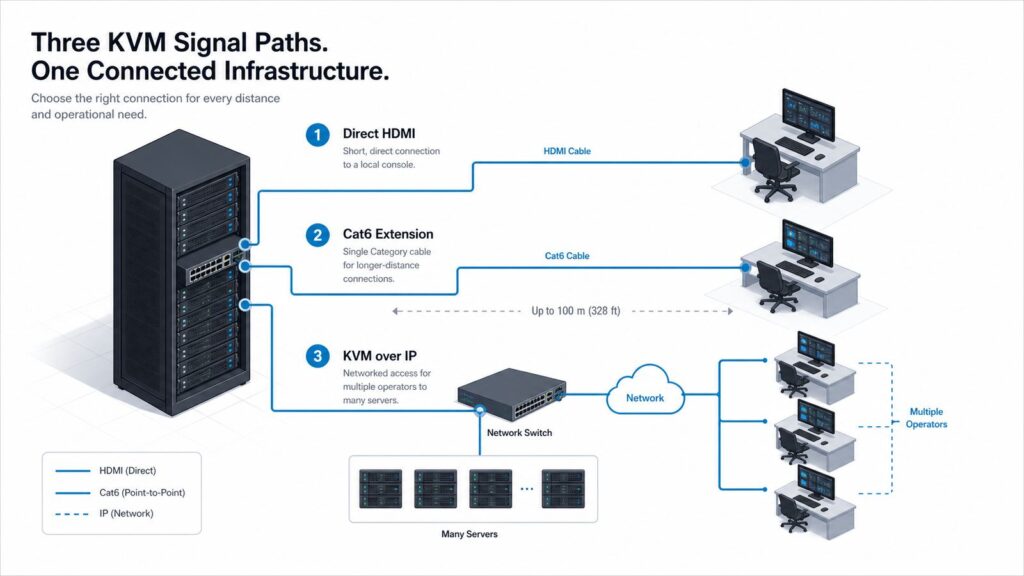
- Direct HDMI (local KVM): best when the operator sits within roughly 15 feet of the equipment. Cheapest, zero latency, no configuration, but it dies over distance.
- Cat5/Cat6 point-to-point extension (including HDBaseT): best for a single fixed operator between about 15 feet and 330 feet from the rack. Uncompressed or visually lossless quality, one Category cable, but it is a one-to-one link, not a switchable network.
- KVM-over-IP (KVM over Ethernet): best when you need many operators reaching many machines across floors, buildings, or the public internet. Effectively unlimited distance and any-to-any switching, at the cost of a small amount of latency and more up-front configuration.
The rest of this guide gives you a distance-by-resolution-by-port-count decision matrix, then walks through the four deployment details (EDID, USB support, power, and cabling) that quietly break otherwise correct specs at the rack.
Why the signal path is the decision that matters
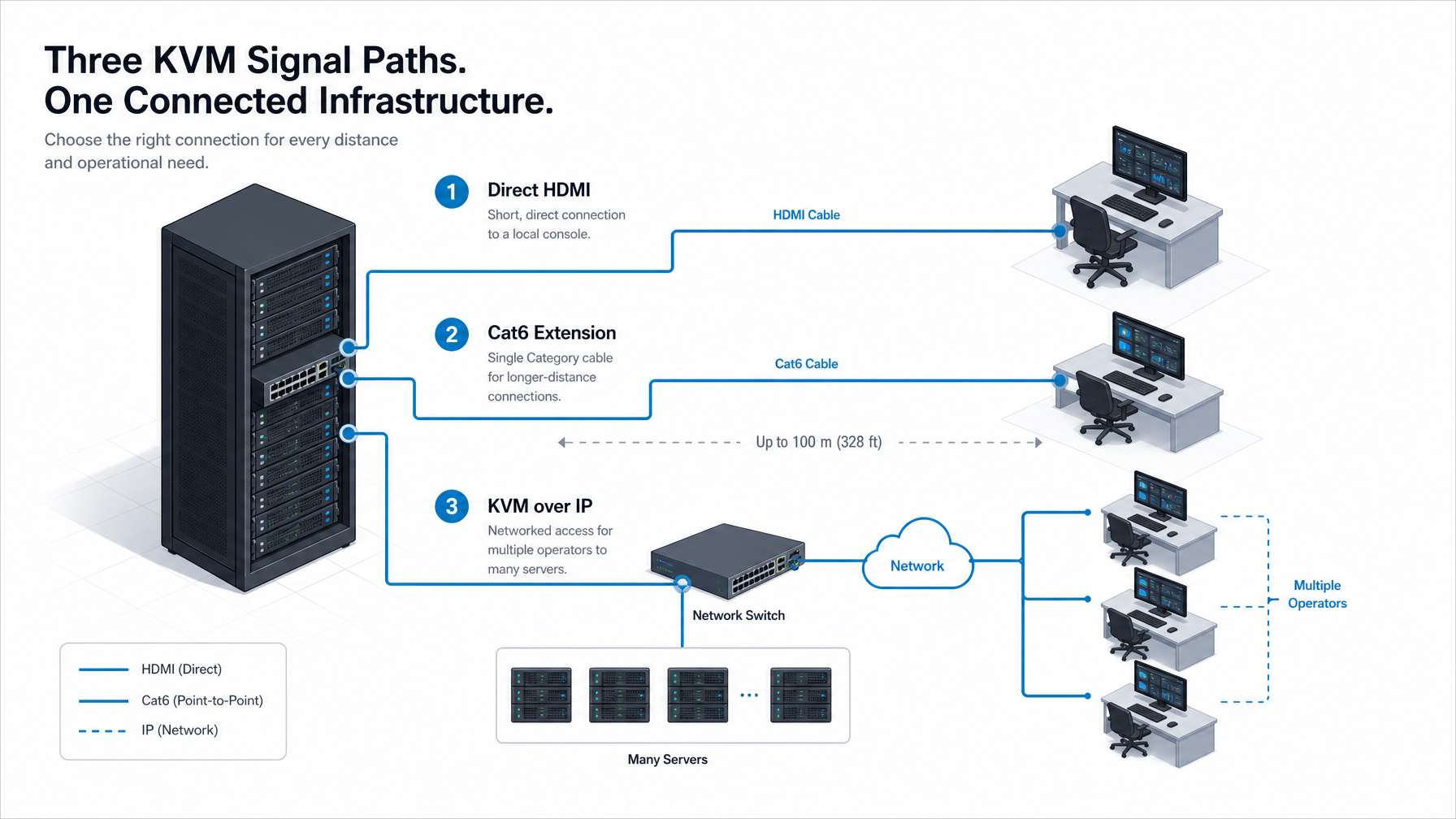
Most server room console projects stall on the wrong question. Teams argue about brand and port count before they have answered the only question that constrains everything else: how far does the keyboard, video, and mouse signal have to travel, and how many operators and machines share it?
That single answer decides your resolution ceiling, your latency, your cabling, and roughly 80 percent of your cost. A 4K signal that looks flawless on a two foot cable at the rack becomes a snowy mess at 60 feet on the same cable type. A setup that is trivial for one technician standing at the console becomes a licensing and network design exercise when eight operators need to reach forty servers from three different rooms.
So before you compare a specific HDMI KVM switch against a specific KVM-over-IP appliance, sort your deployment into one of three signal paths. Each path has a distance envelope it owns, and the failures happen almost entirely when a project is forced onto the wrong path to save money.
Path 1: Direct HDMI KVM at the rack
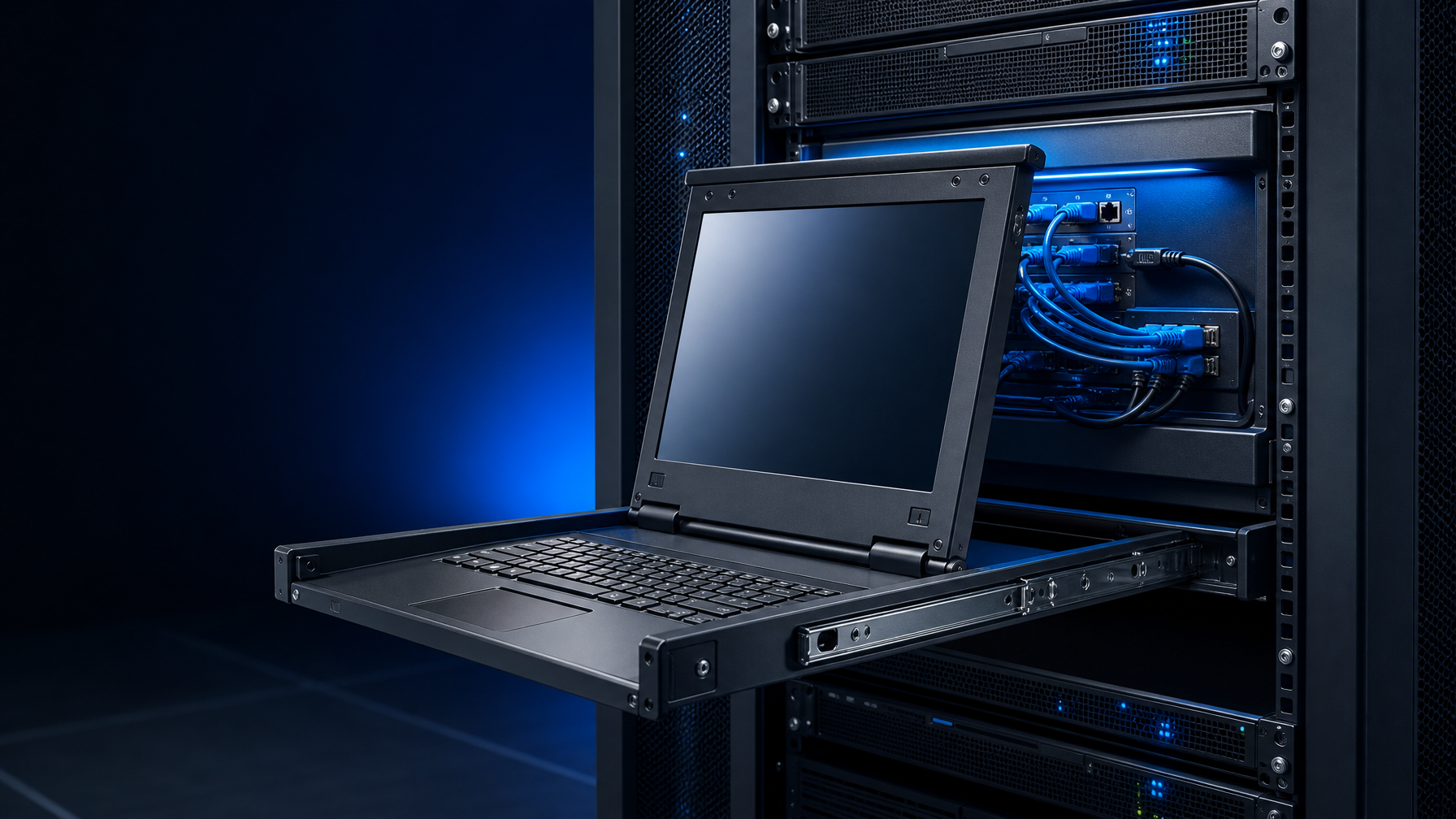
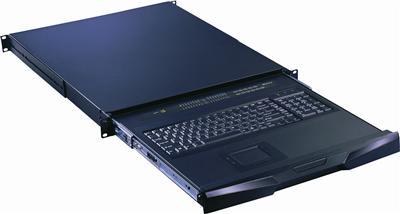
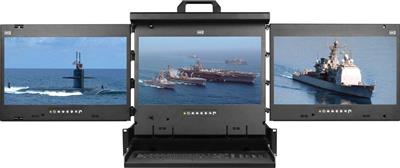
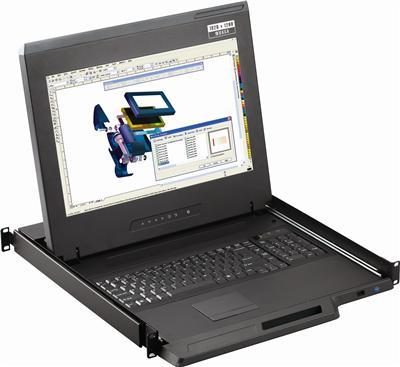
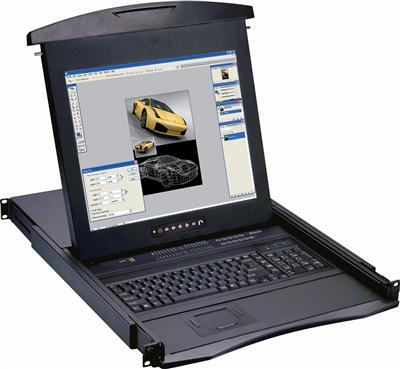
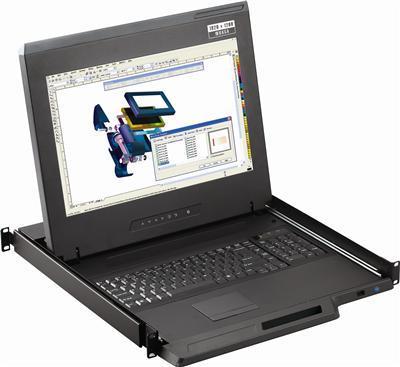
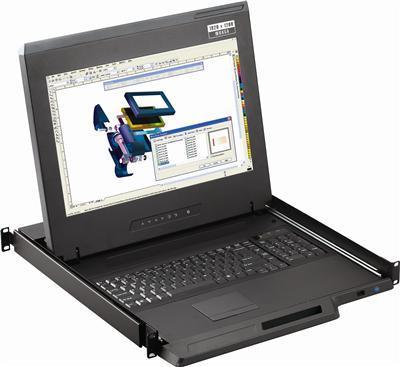
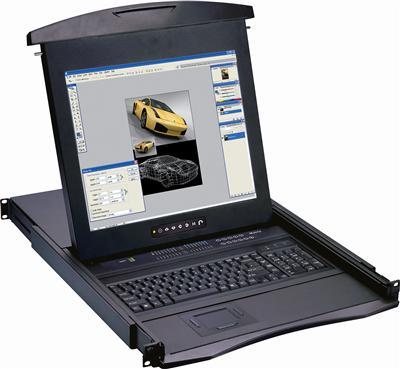
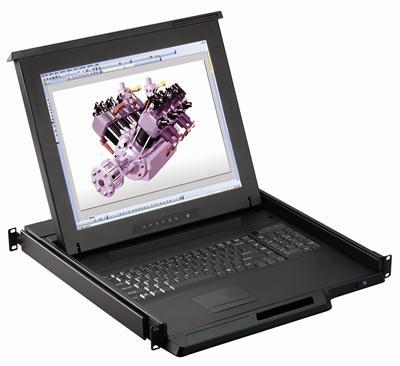
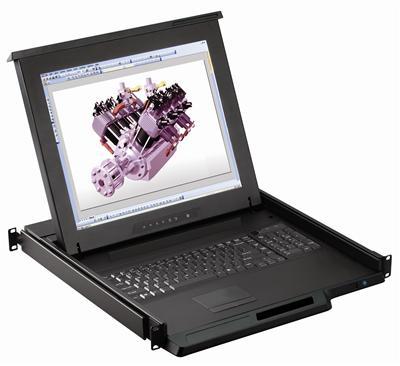
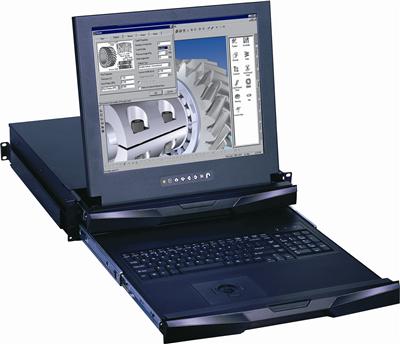
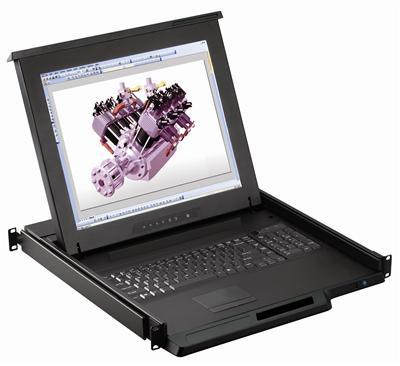
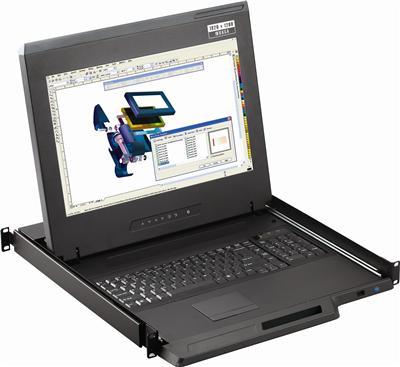
A direct HDMI KVM switch is the local console at the rack. One or more servers connect to the switch with short HDMI and USB cables, and a single keyboard, monitor, and mouse (often a rackmount LCD console drawer) plug into the switch's console port. The operator stands or sits right there.
Distance envelope. This is the hard limit. Passive copper HDMI cables stay reliable only over short runs. For the highest bandwidth modes, passive HDMI 2.1 copper tops out around 15 feet, and even conservative 4K at 30 Hz runs are typically rated to roughly 15 meters before signal integrity falls apart, according to length testing summarized by Cable Matters and VCOM. Enthusiast testing collected on the r/hometheater HDMI length thread lands in the same place: plan for about 15 feet of passive copper at full bandwidth, then treat anything longer as a different engineering problem.
Strengths. Direct HDMI is the cheapest path, it adds zero latency because nothing is compressed or packetized, and it needs no configuration. You plug it in and it works. For a single rack with an operator at the console, it is almost always the right answer.
Weaknesses. It does not travel. The moment your operator needs to sit in the next room, in a NOC down the hall, or anywhere past that roughly 15 foot envelope, a local HDMI switch alone cannot reach. You are also tied to one physical location per console.
Best for: a single rack or a small cluster of racks with a rackmount LCD drawer, where the person doing the work is physically at the equipment.
Path 2: Cat5/Cat6 extension and HDBaseT
A Cat5/Cat6 KVM extender splits into a transmitter at the server (or at the local KVM switch) and a receiver at the operator's desk, joined by one or two runs of ordinary Category cable. This is the workhorse for getting a console out of a loud, hot server room and onto someone's desk without pulling the whole rack into the office.
Distance envelope. This is where Category cabling shines. HDBaseT, the dominant standard for this path, carries fully uncompressed video, audio, USB, Ethernet, control signals, and up to 100 watts of power over a single Category cable for distances up to 100 meters (328 feet), per the HDBaseT Alliance. Real products bracket that number in both directions. WyreStorm's EX-70-G2 HDBaseT set carries 4K to 115 feet and 1080p to 230 feet on a single Cat6 run, while AV Access ships a 4K HDMI KVM extender rated to 150 meters with USB 2.0. For lower resolutions the reach stretches further still: Austin Hughes' Cyberview CV-F101 pushes 1080p up to 200 meters (650 feet) over a single Cat5/6/7 cable, and it notes the digital extension holds resolution across the run rather than degrading gradually the way analog extension does.
Strengths. One cheap, field-terminable cable does the work of a bundle of video and USB cables. Quality is uncompressed or visually lossless, so latency is negligible for interactive work. Category cable is easy to pull, easy to replace, and already stocked in every facility.
Weaknesses. A basic extender is a point-to-point link. It moves one console to one remote location. It does not switch between many sources or serve many operators on its own. Higher resolutions shorten the distance you can cover: a link that carries 1080p to 650 feet may only carry 4K to a fraction of that, so read the resolution-versus-distance rating, not just the headline maximum.
Best for: one fixed operator who needs to sit a floor or a few hundred feet away from a rack, at full or near-full resolution, without the overhead of a networked system.
Path 3: KVM-over-IP (KVM over Ethernet)
KVM-over-IP digitizes the keyboard, video, and mouse signal, compresses it, and sends it as packets across a standard TCP/IP network. Instead of a dedicated cable between two points, the console rides your existing LAN, WAN, or even the public internet through a browser or client. This is the same category the industry calls KVM over Ethernet.
Distance envelope. Effectively unlimited. If there is an IP route to the target, an operator can reach it. Vendor references frame KVM-over-IP as the option built specifically for data center and server room environments where reach and shared access matter, as KVM Switches Online describes in its extender lineup. The practical constraint stops being feet of cable and becomes available network bandwidth and round-trip latency.
Strengths. Any-to-any switching. Many operators can reach many machines, sessions can be shared or handed off, and access can be controlled with the same authentication and logging your network already uses. Distance is a non-issue. For lights-out data centers and multi-site estates, this is the only path that scales.
Weaknesses. Compression introduces a small amount of latency and, under heavy motion or on a congested link, some visual softening. It is the most configuration-heavy path: IP addressing, firewall rules, and often per-target licensing. It also depends on the network being healthy, so your console access is only as reliable as the LAN it rides.
Best for: data centers, NOCs, and any environment where multiple administrators need remote, switchable access to many servers across rooms, buildings, or geographies. For a full data center walkthrough, including guidance on replacing legacy appliances, see our 2026 KVM over IP decision framework.
The decision matrix: distance by resolution by port count
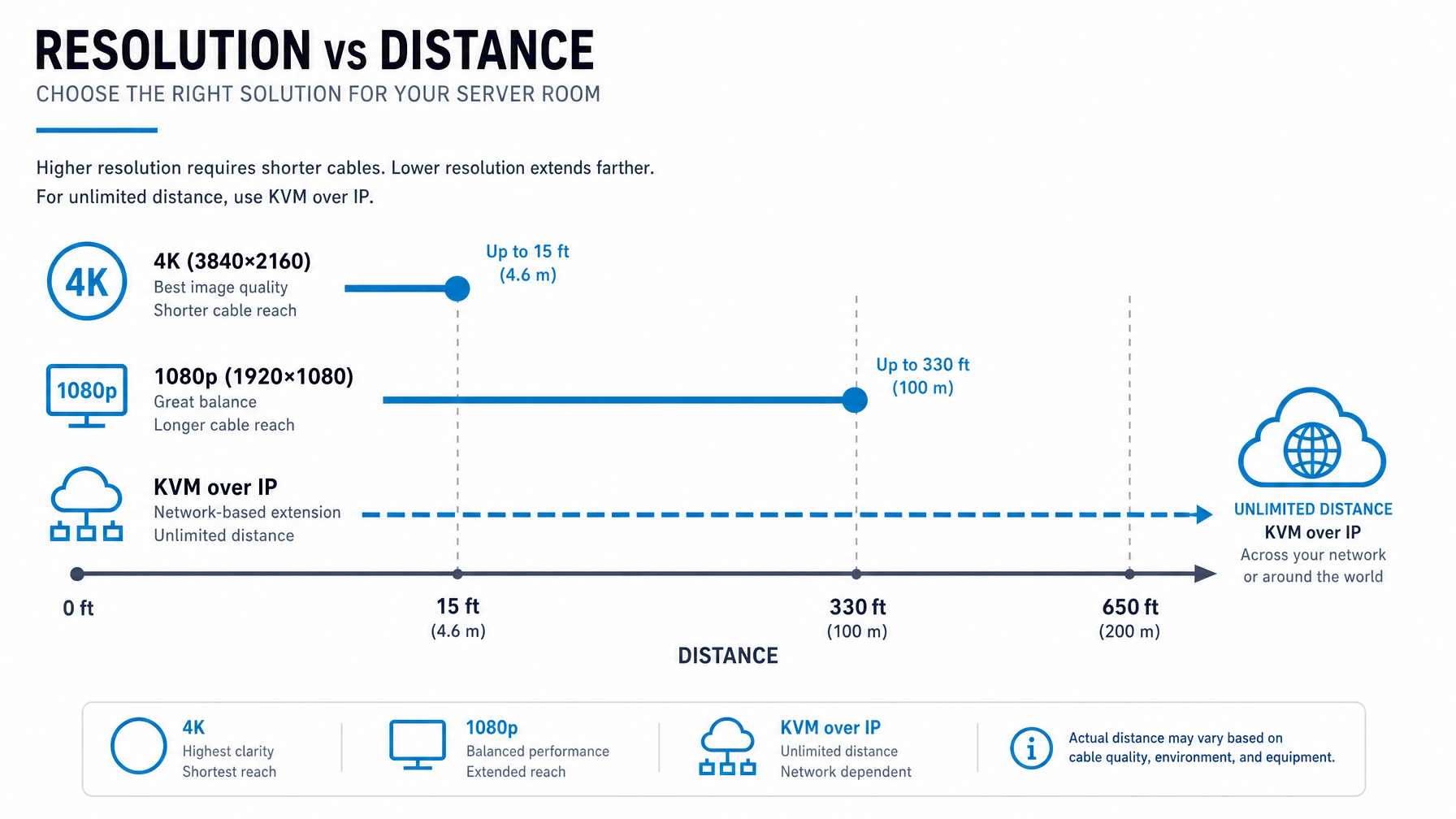
Use the operator-to-equipment distance as the primary axis, then adjust for resolution and how many operators and machines share the console. The table below maps common scenarios to the path that fits.
| Distance (operator to equipment) | Resolution target | Operators / machines | Recommended path | Why |
|---|---|---|---|---|
| Under ~15 ft (at the rack) | Up to 4K | 1 operator, 1 to 16 machines | Direct HDMI KVM switch | Cheapest, zero latency, no config; passive HDMI reach ends here |
| ~15 ft to ~330 ft | 4K | 1 fixed operator, 1 source | Cat5/Cat6 HDBaseT extender | Uncompressed 4K to about 100 m on one Category cable |
| ~330 ft to ~650 ft | 1080p | 1 fixed operator, 1 source | Cat5/Cat6 extender (1080p-rated) | Lower resolution buys longer reach on Category cable |
| Any distance / across buildings | 1080p to 4K (bandwidth-dependent) | Many operators, many machines | KVM-over-IP | Only path with any-to-any switching and unlimited reach |
| At the rack, many sources, one operator | Up to 4K | 1 operator, many machines | HDMI KVM switch (high port count) | Consolidates many servers to one local console |
| Mixed: local console plus remote access | 4K local, compressed remote | Local plus remote operators | HDMI/Cat5 switch feeding a KVM-over-IP gateway | Keep local zero-latency, add IP reach where needed |
Two rules of thumb fall out of this matrix.
First, resolution and distance trade against each other on every copper path. A cable or extender that carries 1080p to 650 feet does not carry 4K to 650 feet. Always spec against your worst-case resolution at your longest run.
Second, you rarely pick one path for a whole facility. A common, sensible design keeps a direct HDMI console at each rack for zero-latency hands-on work, then layers KVM-over-IP on top for remote and after-hours access. The paths complement each other.
The four gotchas that break jobs at the rack
A correct signal path on paper still fails on install day when one of these four details is missed. These are the calls that generate the most support tickets, and every one of them is avoidable at spec time.
1. EDID: the black screen you cannot explain
EDID is the handshake where a display tells the source what resolutions and timings it supports. When you insert an extender or a switch between the source and the display, that handshake can break. The source either sees no display and outputs nothing (a black screen), or defaults to a safe low resolution that ignores your expensive 4K panel.
Good extenders and switches solve this with EDID management: they copy, emulate, or let you set the EDID so the source always sees a valid display even when the real monitor is 300 feet away or powered off. When you compare products, EDID handling is a feature to confirm, not assume. Vendors like AV Access call out automatic EDID as a headline feature precisely because getting it wrong is the single most common cause of a dead link. For how EDID and 4K support play out inside the switch itself, see our HDMI KVM switch buyer's guide.
2. USB support: is it real keyboard-and-mouse, or full USB 2.0?
Every path claims USB, but the level of USB support varies and it matters. Basic KVM extension often provides emulated keyboard and mouse (sometimes called USB 1.1 class), which is fine for typing and clicking. If you need to plug in a touchscreen, a CAC/smart-card reader, a mass-storage device for imaging, or a signature pad, you need transparent USB 2.0 support, and not every extender or IP appliance offers it.
Check the exact USB spec. AV Access, for example, distinguishes its USB 1.1 zero-latency KVM extender from models with 4-port USB 2.0, because the two serve different jobs. Spec the USB tier your peripherals actually require, not the generic "supports USB" line on a datasheet.
3. Power: who feeds the remote end, and can one cable do it?
A transmitter-and-receiver extender pair usually needs power at both ends. In a rack that is easy; at a remote desk or a ceiling-mounted display it may not be. This is where Power over Cable matters. HDBaseT can deliver up to 100 watts alongside the video and USB over the same Category cable, per the HDBaseT Alliance, which means the remote unit can be fed from the transmitter end with no local outlet. Products such as the OREI UHD-EXB400-KVM advertise power over the single cable for exactly this reason. Confirm whether your chosen unit needs two power supplies or one, and whether the remote location has an outlet before the truck rolls.
4. Cabling: not all Category cable carries 4K the same distance
The extender's rated distance assumes a cable that meets or exceeds a certain category and quality. Running HDBaseT 4K over old Cat5e, over cable with a lot of untwisted length at the terminations, or through a patch panel with marginal connectors can cut the working distance dramatically or introduce sparkle and dropouts. Manufacturers commonly recommend solid-core Cat6 or better for 4K HDBaseT runs, and shielded cable in electrically noisy rooms. If you are reusing existing cable, verify its category and test the run at your target resolution before you commit the design.
Worked examples by room type
Single rack, one technician, at the console
A hospital imaging closet with two servers and a rackmount LCD drawer needs nothing more than a direct HDMI KVM switch. The operator is at the rack, distances are inches, and there is no case for compression or networking. Direct HDMI wins on cost, simplicity, and zero latency.
Control room desk, 200 feet from the equipment room
A broadcast control room keeps its noisy servers in a separate equipment room 200 feet away, and one operator drives a single workstation from the desk at full 1080p or 4K. This is a textbook Cat5/Cat6 HDBaseT extension: one Category cable, uncompressed quality, negligible latency, and power over the single cable so the desk end needs no extra outlet. KVM-over-IP would be overkill and would add latency for no benefit.
Multi-room data center, eight admins, forty servers
A colocation cage has forty servers and eight administrators who work from three rooms and occasionally from home. No copper path scales here. KVM-over-IP is the only fit: any admin can reach any server over the existing network, sessions can be shared for troubleshooting, and access is authenticated and logged. Latency is a fair trade for reach and any-to-any switching. Many teams still keep a direct HDMI crash-cart or a per-row console for zero-latency hands-on work when they are physically in the cage.
Migrating off legacy analog KVM
Facilities replacing aging analog or VGA-based extension usually gain resolution and distance in the move. Digital Category extension holds full resolution across the run instead of softening with distance the way analog does, as Austin Hughes notes for its Cyberview CV-F101. If the same migration also adds remote or multi-operator requirements, that is the moment to evaluate KVM-over-IP rather than a like-for-like point-to-point swap.
FAQ
What is the difference between KVM-over-IP and a Cat5 KVM extender?
Both can use Category cable, which causes the confusion. A Cat5 KVM extender is a point-to-point link: one transmitter, one receiver, one dedicated cable, and typically uncompressed video with no network involved. KVM-over-IP digitizes and compresses the signal and sends it as packets across a shared TCP/IP network, so many operators can reach many machines and distance is effectively unlimited. Rule of thumb: if you need switching among many operators and machines or reach across buildings, that is KVM-over-IP; if you need one console moved to one remote spot at the highest quality, that is a Cat5 extender.
How far can an HDMI KVM switch send video without an extender?
Not far. Passive copper HDMI is reliable to roughly 15 feet at high bandwidth, and even lower-bandwidth 4K at 30 Hz runs are generally rated to about 15 meters before signal integrity degrades, per Cable Matters and VCOM. Past that envelope you need a Cat5/Cat6 extender, HDBaseT, fiber, or KVM-over-IP.
Does KVM-over-IP add noticeable latency?
It adds some, because the video is compressed and packetized, but for typing, clicking, and routine administration it is usually imperceptible on a healthy local network. Latency and visual softening become noticeable under heavy on-screen motion or on a congested or long-haul link. For work that demands zero latency, such as live video monitoring or fast interactive graphics at the rack, a direct HDMI or uncompressed Cat5/HDBaseT path is the better choice.
Can I run 4K over Cat6, and how far?
Yes. HDBaseT carries uncompressed 4K over a single Category cable up to about 100 meters (328 feet), per the HDBaseT Alliance, and some products push a bit further. The catch is that 4K reaches less distance than 1080p on the same cable, and the rating assumes good solid-core Cat6 or better. Reusing old or marginal cable can shorten the working distance well below the datasheet number.
What USB devices work over a KVM extender?
Keyboards and mice work on essentially every extender. Smart-card and CAC readers, touchscreens, signature pads, and mass-storage devices need transparent USB 2.0 support, which is a higher tier than the basic emulated keyboard-and-mouse (USB 1.1 class) that many low-cost extenders provide. Confirm the exact USB specification against your peripheral list before you buy.
Should I standardize on one signal path for the whole facility?
Rarely. Most well-designed rooms mix paths: a direct HDMI console at each rack for zero-latency hands-on work, Cat5/HDBaseT extension where one operator sits a few hundred feet away, and KVM-over-IP layered on top for remote and multi-operator access. Match each path to the distance, resolution, and sharing requirement of the specific console rather than forcing everything onto one approach.
How to spec it with confidence
The signal path is the decision that governs cost, quality, and whether the console works on day one. Sort each console into direct HDMI, Cat5/Cat6 extension, or KVM-over-IP by distance and sharing needs first, then confirm the four details that quietly break correct specs: EDID management, the right USB tier, power at the remote end, and cable quality that supports your resolution at your longest run.
If you are staring at a mixed environment with several racks, a few remote desks, and a growing case for remote access, a five minute conversation usually saves a return shipment. KVMSwitchTech pairs the catalog with live guidance on native resolution, video format, distance, USB support, rack depth, and power environment, so the hardware that ships is the hardware that fits. Browse the catalog, from full rackmount monitors to complete console drawers, then call the team at (216) 798-7530 to verify your distances and resolutions before you order, and spec the path once instead of twice.