TLDR
The wrong HDMI KVM switch costs you a service window, a botched 4K display configuration, or a future forklift upgrade when you need remote access. Five questions determine the right unit: how many ports, what resolution, how EDID is handled, whether USB or PS/2 fits your hardware, and whether you need an IP upgrade path. Answer all five before you order.
Table of Contents
- Why HDMI KVM Selection Is More Complicated Than It Looks
- Question 1: How Many Ports Do You Actually Need?
- Question 2: What Resolution Do Your Servers and Monitors Support?
- Question 3: How Does the Switch Handle EDID?
- Question 4: USB or PS/2?
- Question 5: Do You Need an IP Upgrade Path?
- Quick-Reference Comparison Table
- Talk to an Expert Before You Order
Why HDMI KVM Selection Is More Complicated Than It Looks
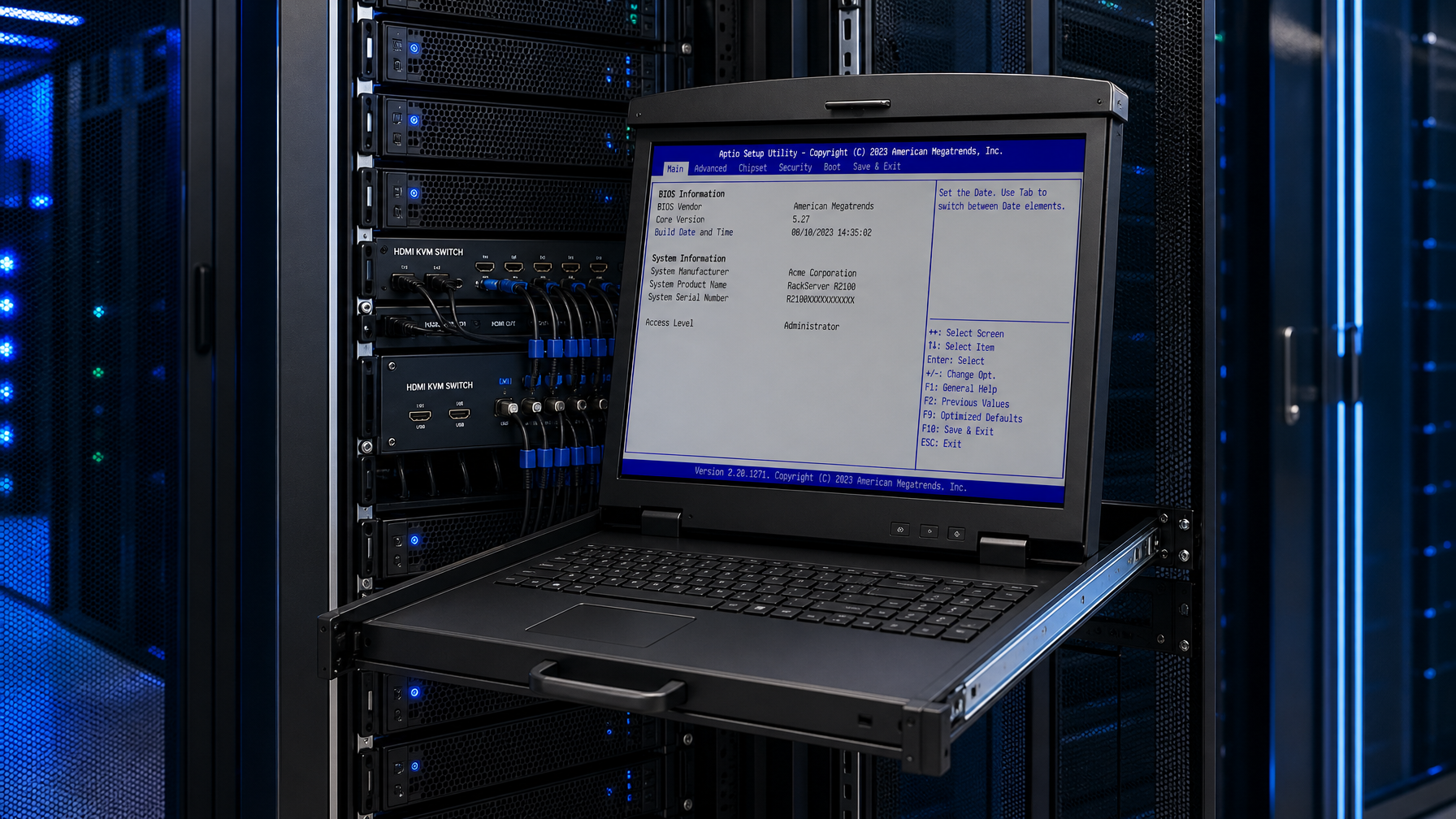
An HDMI KVM switch routes keyboard, video, and mouse control from one console to multiple computers. The HDMI part sounds simple. It is the same connector on your laptop, your rackmount LCD, and your video card. In practice, HDMI version, bandwidth, EDID behavior, and USB interface type all interact, and a mismatch on any one of them produces problems that are genuinely hard to debug under pressure.
The good news: the decision tree is short. Walk through the five questions below, in order, and you will arrive at a specification that matches your actual environment instead of the marketing sheet.
Question 1: How Many Ports Do You Actually Need?
Port count sets the base price and the physical footprint. Most IT managers underestimate future growth and end up cascading switches, which adds latency and complexity.
Standard port tiers for HDMI KVM switches:
| Port Count | Typical Use Case |
|---|---|
| 2-port | Developer workstations, small editing suites |
| 4-port | Small server rooms, branch-office racks |
| 8-port | Mid-size data center rows, lab environments |
| 16-port | Dense server farms, NOC consoles |
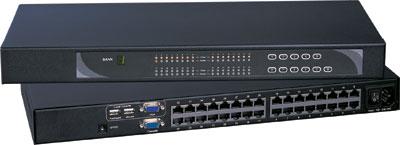
| 32-port and above | Enterprise data centers, cascaded deployments |
The growth math: If you are managing eight servers today and expect to add four per year, buy 16 ports. A 4-port unit saves roughly $80 to $200 upfront and costs a full replacement cycle within 18 months.
Cascading: Many enterprise-grade HDMI KVM switches support cascading, where a second KVM connects as a target device on the primary switch. This scales port count without replacing the primary unit. Confirm that both the master and slave units from the same product family explicitly support cascading before relying on it. For larger deployments that need to route multiple video sources to multiple displays simultaneously, an HDMI matrix switch may be a better architectural fit than a cascaded KVM stack.
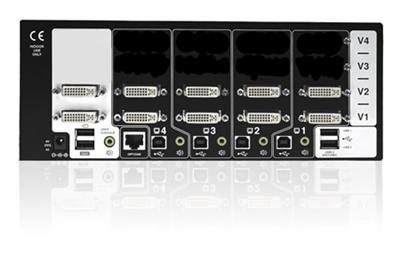
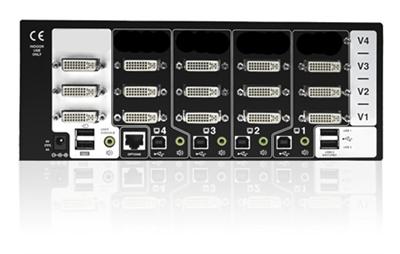
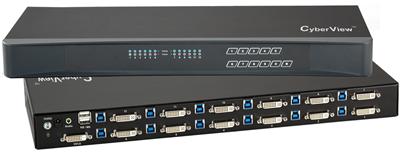
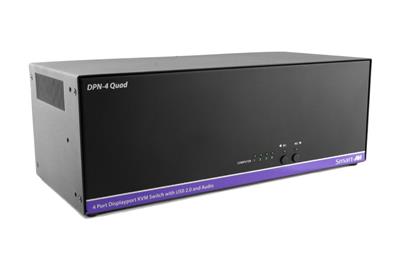
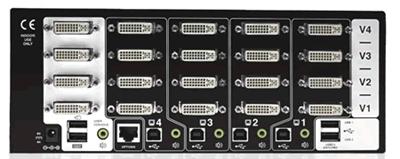
Dual-monitor setups: An "8-port" label on an HDMI KVM switch for dual-monitor environments means 8 connected computers, each needing two HDMI outputs at the switch. Verify whether port count refers to the number of computers or the number of HDMI connectors. These are not always the same number on the spec sheet.
Question 2: What Resolution Do Your Servers and Monitors Support?
The weakest link in your HDMI chain sets the ceiling. Resolution capability flows from the video card output, through the cable, through the KVM switch, and to the display. Each component must support the target spec.
HDMI 1.4 vs. HDMI 2.0: What Actually Differs
HDMI 1.4 supports up to 4K at 30 Hz (3840×2160 at 30 frames per second). HDMI 2.0 raises that to 4K at 60 Hz with full RGB 4:4:4 color. If your rackmount LCD monitors run at 1080p or 1920×1200, either version works. If you are running 4K displays or plan to, HDMI 2.0 is a hard requirement for smooth 60 Hz output.
Common resolution targets and the HDMI version you need:
| Target Resolution | Minimum HDMI Version | Notes |
|---|---|---|
| 1080p (1920×1080) at 60 Hz | HDMI 1.4 | Handled by virtually any HDMI KVM |
| 1920×1200 at 60 Hz | HDMI 1.4 | Standard for 16:10 rackmount LCDs |
| 4K (3840×2160) at 30 Hz | HDMI 1.4 | Usable for mostly static server console work |
| 4K (3840×2160) at 60 Hz | HDMI 2.0 | Required for high-refresh or video-heavy workflows |
| 4K at 60 Hz, dual monitor | HDMI 2.0 (both heads) | Each video head must independently meet 2.0 bandwidth |
Bandwidth Is Per-Head, Not Per-Switch
This trips up a lot of buyers. A dual-monitor HDMI KVM switch must support 4K/60 Hz on each HDMI output independently. A switch that lists "supports 4K/60 Hz" in its headline spec may deliver that on the primary display and fall back to 4K/30 Hz or lower on the secondary head if the internal chip does not have full bandwidth per port. Read the per-head spec, not just the top-line number.
Server-Side Output Matters Too
Most 1U servers ship with HDMI 1.4 or VGA on their rear panels. A 4K-capable KVM switch connected to a server with an HDMI 1.4 output will cap at HDMI 1.4 resolution from that server. If 4K output from servers is a firm requirement, confirm the server's actual video output version before specifying the switch.
Question 3: How Does the Switch Handle EDID?
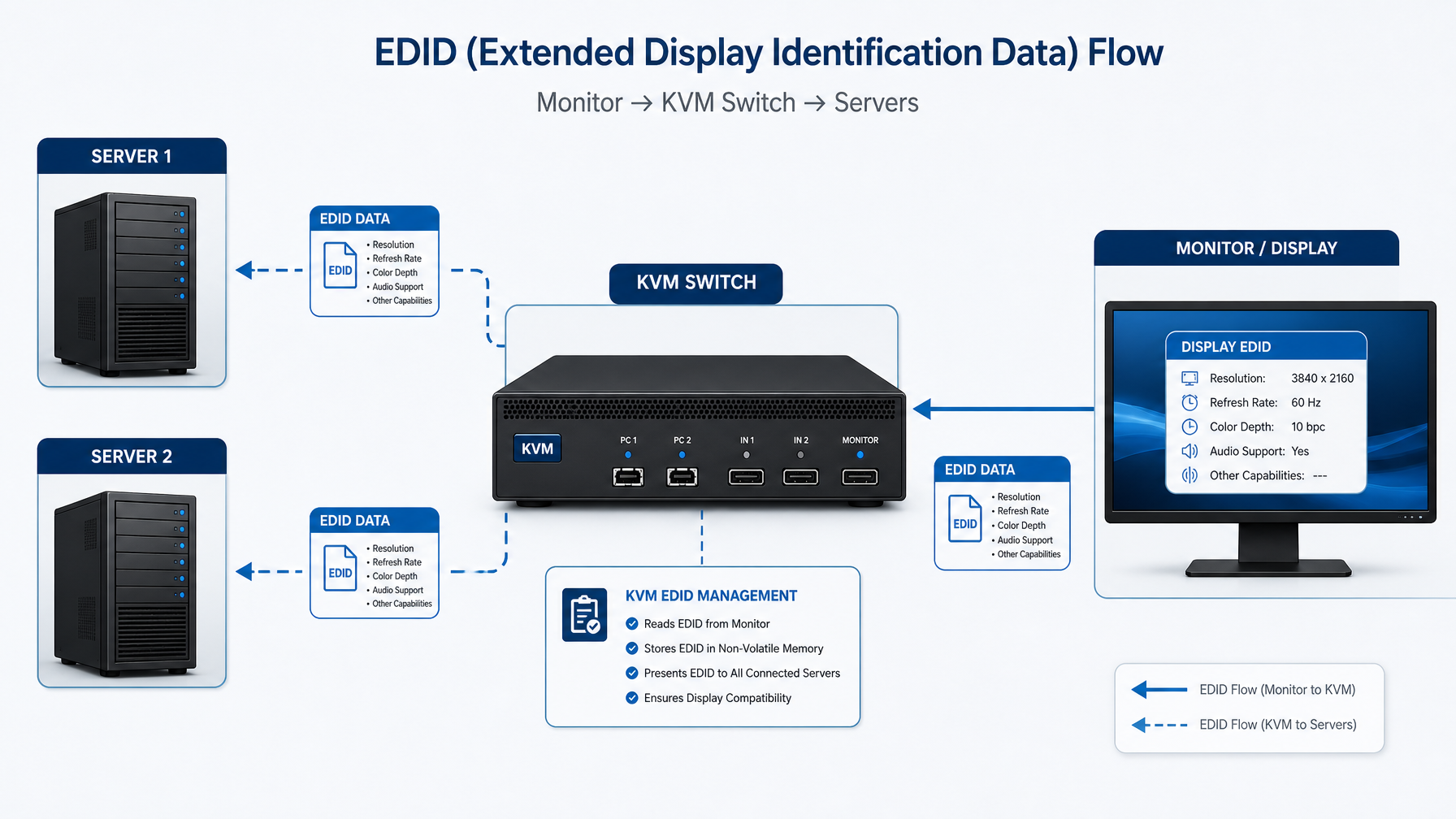
EDID (Extended Display Identification Data) is the monitor's identity card. It is a data block that a display sends to a connected computer, telling the GPU which resolutions, refresh rates, color formats, and audio modes the display supports. The GPU reads that block and offers only the display modes the monitor actually handles.
A KVM switch sits between the monitor and every connected computer. This creates a problem: when you switch from Server A to Server B, Server A loses its direct connection to the monitor. If the KVM passes EDID passively, Server A interprets the signal loss as the monitor being physically unplugged.
What Happens When EDID Is Handled Poorly
The TESmart engineering team describes the cascade of failure well: the inactive computer "may behave as if the monitor was unplugged," triggering the OS to re-detect the display. In a single-monitor 1080p environment, that usually means a two-to-four second black screen. In a dual-monitor or 4K environment, the consequences are worse:
- Windows move from their assigned monitors to a single screen
- Refresh rate drops from 144 Hz or higher to a lower fallback
- Resolution degrades until the monitor is re-detected
- Games or full-screen applications exit to windowed mode
- OBS, video capture tools, or remote desktop software lose the expected display source
Source: TESmart EDID Emulation Explained (May 2026)
EDID Emulation: The Fix
A KVM switch with EDID emulation reads the monitor's identity block once, stores it, and presents that stored identity to every connected computer continuously, even when the computer is not the active session. Server A keeps "seeing" the monitor as connected while you work on Server B.
This matters most in these environments:
| Environment | Why EDID Emulation Is Critical |
|---|---|
| Dual-monitor server consoles | OS must maintain extended desktop layout and window positions across both heads |
| 4K rackmount displays | High-bandwidth mode negotiation is sensitive to any signal interruption |
| Mixed OS environments (Windows + Linux) | Different kernels respond differently to display disconnect events |
| Financial, broadcast, or NOC consoles | Fixed multi-screen layouts cannot afford window shuffling during a live event |
| Servers running monitoring software or capture tools | Applications lose the expected display source if the OS detects a disconnect |
Three Levels of EDID Support
Passive passthrough: No emulation. The KVM passes EDID directly from the monitor to whichever computer is active. The inactive computer loses display identity. This is the cheapest option and the most problematic in production environments.
Fixed EDID emulation: The KVM stores a single, pre-programmed EDID profile (typically 1080p/60 Hz) and presents it to all connected computers regardless of what the actual monitor reports. This prevents disconnect behavior but caps the display modes the computers see, which can be a problem if your actual display supports higher resolutions or refresh rates.
Dynamic EDID emulation: The KVM reads the connected monitor's actual EDID, stores it, and presents that real profile to all computers. This preserves all native display modes while preventing the disconnect behavior. For 4K setups and multi-monitor configurations, dynamic EDID emulation is the right spec.
Bottom line: For any production server room or workstation environment with more than a single 1080p display, specify dynamic EDID emulation explicitly. Do not assume it is included because the switch advertises "EDID support."
Question 4: USB or PS/2?
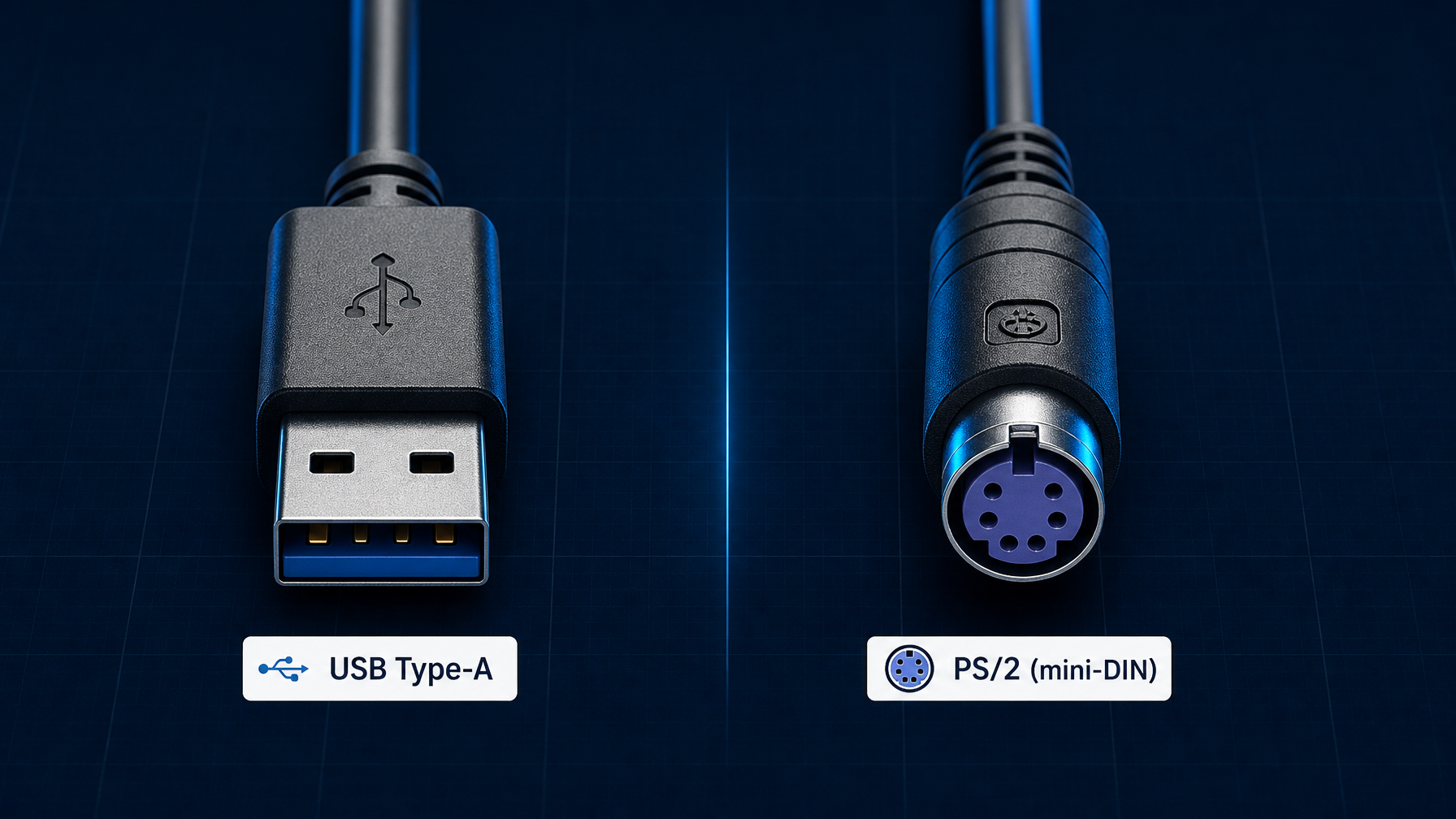
PS/2 dominated server room KVM deployments for decades, and a significant portion of installed infrastructure still relies on it. USB has largely displaced it for new deployments. The choice depends on your existing server inventory, not just your preference.
PS/2 KVM Connections
PS/2 keyboard and mouse connections use the round mini-DIN connectors that were standard on servers through the mid-2000s. The advantages for KVM deployments:
- BIOS-level access without driver loading. PS/2 is a hardware interface. The server recognizes the keyboard and mouse before any OS driver loads; this makes it reliable for out-of-band BIOS configuration, boot menu access, and recovery operations.
- No USB enumeration delay. PS/2 devices initialize faster because there is no USB bus negotiation.
- Legacy server compatibility. Older Dell PowerEdge, HP ProLiant, and IBM xSeries hardware from the 2000s and early 2010s may have limited or unreliable USB support in their firmware.
Limitation: PS/2 ports are absent from servers manufactured after roughly 2012 to 2015. If your fleet is newer, PS/2 KVM requires USB-to-PS/2 adapters or dedicated combo interface cables, which add a failure point.
USB KVM Connections
USB is the current standard and the right choice for any server manufactured in the last decade. It supports the full range of modern peripherals and is the only option for servers that ship without PS/2 connectors. USB KVM switches handle keyboard and mouse through standard HID (Human Interface Device) protocols, which every modern OS and BIOS supports natively.
USB 2.0 covers keyboard, mouse, and most peripheral sharing without issue. USB 3.0 ports on a KVM switch matter primarily for peripheral pass-through: external drives, USB dongles, and smart card readers the active server needs to access.
Combo Interface Cables
Enterprise KVM switches often ship with combo cables that present both a USB connector and a legacy PS/2 connector at the server end. This covers mixed fleets without replacing the switch or the servers. If you manage hardware spanning multiple generations, a combo-cable KVM switch is the practical choice.
Decision rule:
| Server Fleet Age | Right Choice |
|---|---|
| All servers post-2015 | USB KVM |
| Mixed fleet (some pre-2013 hardware) | Combo cable (USB + PS/2) KVM |
| All servers pre-2012 | PS/2 KVM or combo cable |
Question 5: Do You Need an IP Upgrade Path?
A local HDMI KVM switch requires physical presence at the console to switch and manage servers. That works in co-located or on-premises environments where staff are on-site. It breaks down the moment you need to manage a remote cage, respond to an out-of-band incident from off-site, or support multiple data center locations from a central NOC.
Local KVM vs. KVM Over IP
Local HDMI KVM switch: Console-side switching only. Keyboard, video, and mouse signals travel over copper (HDMI cables) from the console to the switch and then to each server. No network interface. No remote access.
KVM over IP: The KVM switch has an Ethernet port. A remote operator connects through a web browser or dedicated client software, sees the server's video output (including BIOS and boot screens), and controls keyboard and mouse over the network. Remote access is BIOS-level: it works even if the OS is down, frozen, or in the middle of a firmware update.
When to Plan for IP Access Now
Even if remote access is not an immediate requirement, consider these scenarios:
- Staff reduction or hybrid-remote IT teams. Remote BIOS-level access eliminates a physical site visit for many out-of-band tasks.
- Secondary or disaster recovery sites. DR environments often sit in co-location facilities. KVM over IP makes them manageable without a dedicated on-site technician.
- Compliance requirements. Some regulatory frameworks require auditable, authenticated access logs for server console sessions. KVM over IP platforms produce those logs; local switches do not.
- Vendor-managed environments. If a third-party vendor manages any part of your infrastructure, KVM over IP lets them access systems without physically entering your facility.
IP-Capable HDMI KVM: What to Look For
Not all KVM switches with an Ethernet port deliver the same capability. Key features to confirm:
- Full video over IP, not just management: Some switches offer a network port only for firmware updates or RS-232 management. True KVM over IP delivers live video, keyboard, and mouse through the network session.
- Simultaneous users: Can multiple administrators connect concurrently? Or is the IP session exclusive?
- Bandwidth requirements: Full 1080p video over IP requires a stable LAN connection. 4K video over IP requires higher bandwidth and compression.
- Authentication and encryption: Look for SSL/TLS session encryption and LDAP or Active Directory integration for access control.
Upgrade Path vs. Purpose-Built IP KVM
If your budget is limited today, some local HDMI KVM switches accept an IP extender module that bolts on later; the module converts the switch to an IP-accessible unit without a core hardware replacement. This is a viable staged approach. Confirm with the manufacturer that the specific model supports the upgrade before treating it as a firm upgrade strategy. For console-to-rack distances that exceed the 15-meter limit of passive HDMI cable, a fiber optic KVM extender can carry the signal up to 1,000 meters before a full IP architecture becomes necessary.
Quick-Reference Comparison Table
| Decision Factor | Entry-Level HDMI KVM | Mid-Range HDMI KVM | Enterprise HDMI KVM |
|---|---|---|---|
| Typical port count | 2 to 4 | 4 to 16 | 16 to 64+ |
| HDMI version | 1.4 (1080p/30 Hz 4K) | 2.0 (4K/60 Hz) | 2.0 per head |
| EDID handling | Passive passthrough | Fixed emulation | Dynamic emulation |
| Interface | USB | USB or combo | USB + combo + IP option |
| Dual-monitor support | Rare | Available | Standard |
| IP access | None | Optional add-on | Built-in |
| Cascading | No | Some models | Yes |
| RS-232 / serial management | No | Some models | Yes |
| Typical price range | $100 to $300 | $300 to $1,200 | $1,200 and above |
Talk to an Expert Before You Order
HDMI KVM selection involves combinations that are hard to evaluate from a spec sheet alone. The interaction between your server hardware, video card firmware, rackmount display, cable runs, and IP infrastructure means that a unit that works for one deployment can produce EDID or bandwidth problems in another.
KVMSwitchTech's pre-sales team handles exactly this kind of specification work. The team carries more than 15 years of experience across 1,700-plus KVM and rackmount console SKUs, including HDMI, DVI, DisplayPort, and IP-capable units from multiple manufacturers. They can match your port count, resolution requirements, EDID needs, interface type, and IP upgrade path to specific in-stock models.
Call the pre-sales team directly at (216) 798-7530. No ticket, no hold queue, no upsell script. Just technical help from people who know the catalog.
Related Reading
- KVM over IP decision framework — if remote access is on your roadmap, this guide covers IP KVM platform selection, the Raritan KX III EOL situation, and a five-platform comparison table.
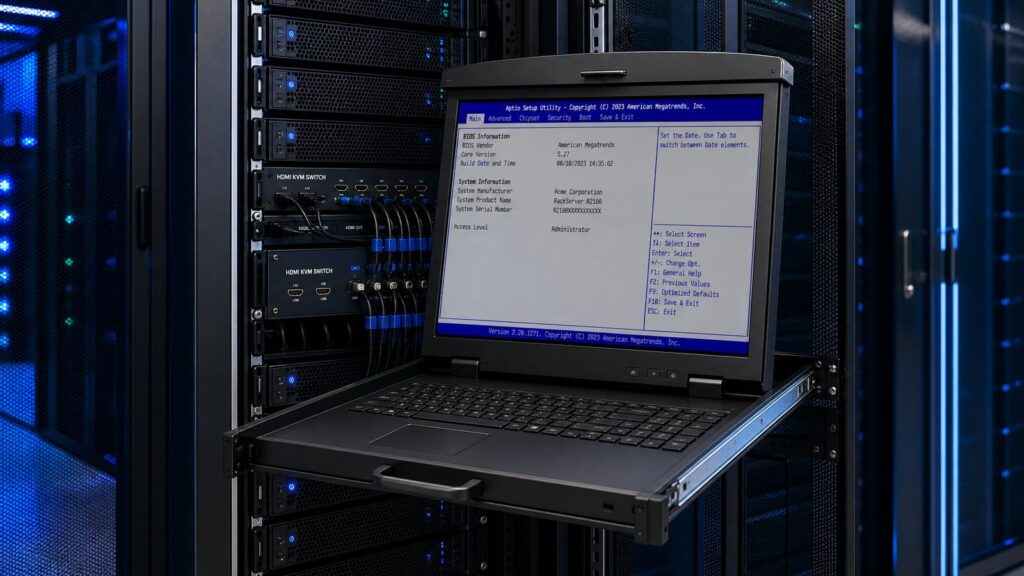
- Browse KVM Drawers and Console Solutions — rackmount console drawer options to pair with your HDMI KVM switch.
- 1U KVM Drawers with USB KVM Switch — integrated 1U drawer units that bundle an HDMI or multi-interface KVM switch with a pull-out rackmount LCD.