Shopping a Rackmount LCD? See the Rackmount LCD section.
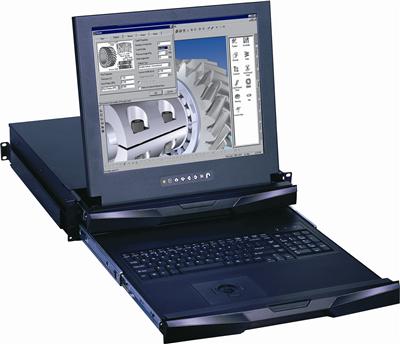
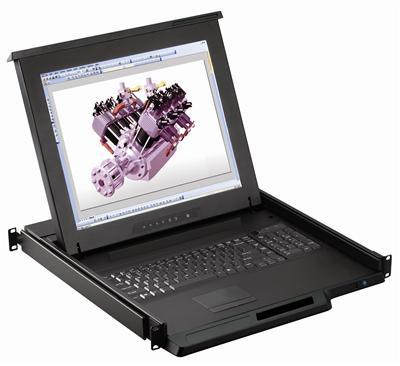
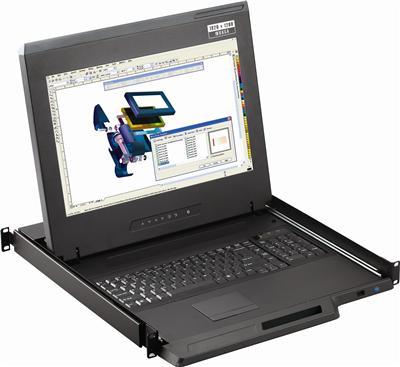
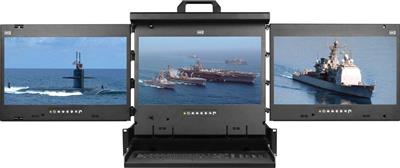
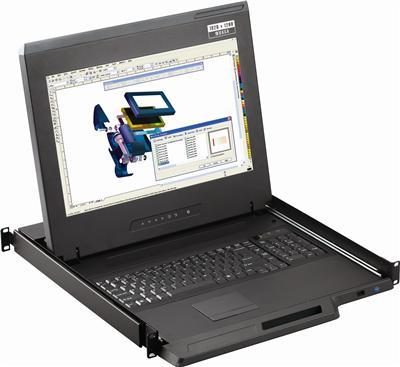
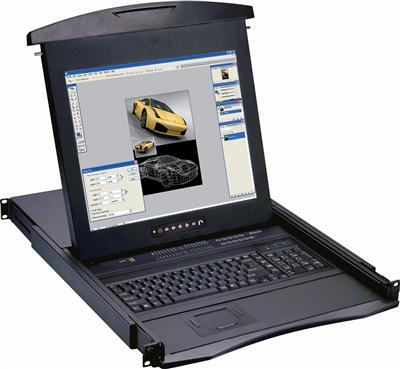
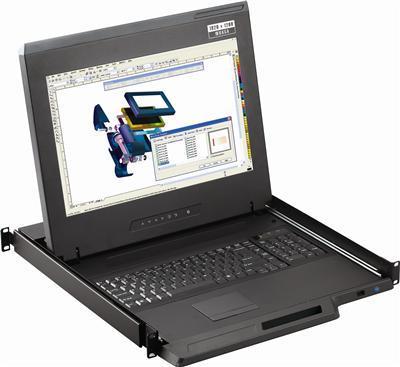
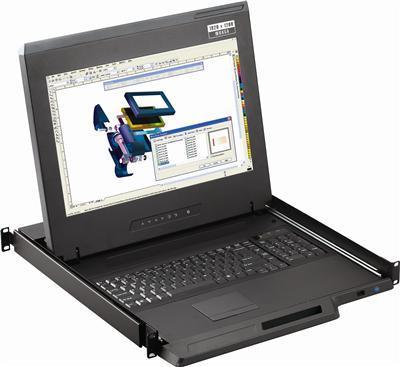
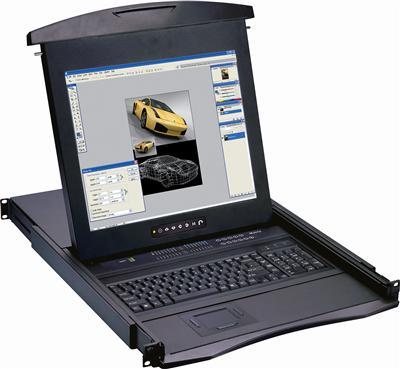
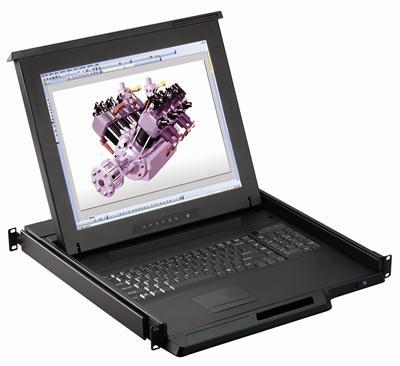
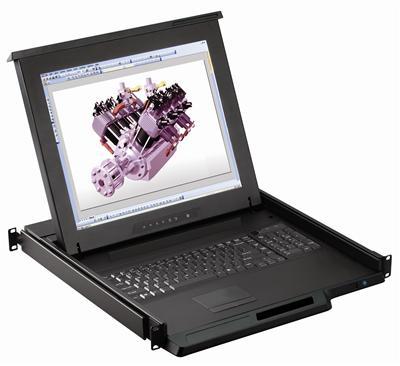
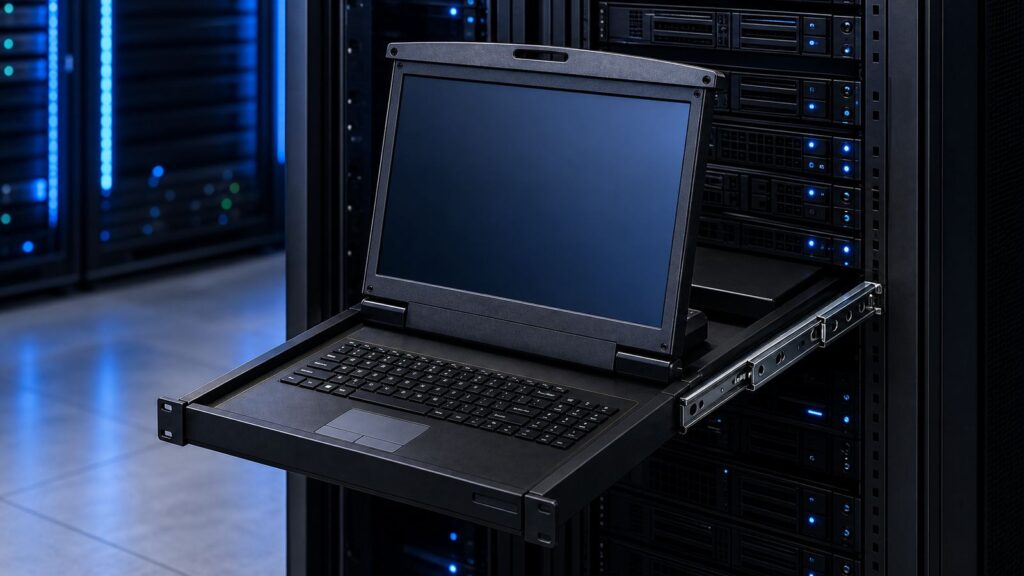
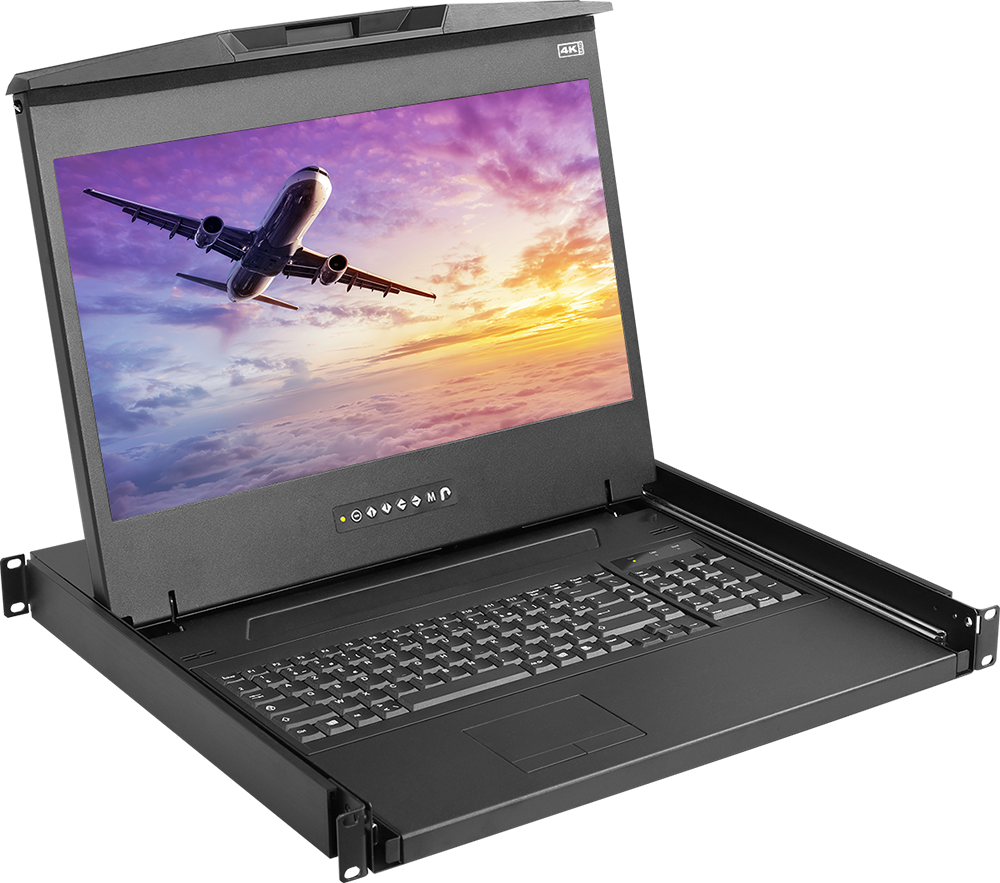
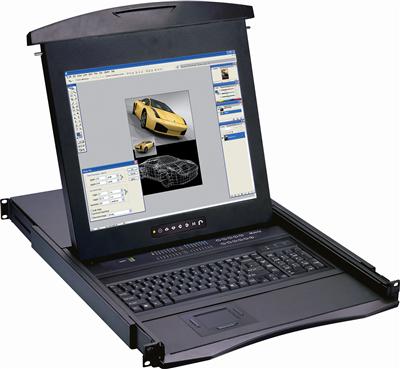
A rackmount monitor is a flat-panel LCD display built into a slide-out drawer that installs directly into a standard 19-inch server rack, usually occupying just 1U or 2U of rack space. It slides out and the screen flips up for instant local access to your servers, then folds away when you are done. When it also includes a keyboard and touchpad, it becomes a rackmount console, a complete control interface for one or many servers.
If you manage a network, server room, or data center, a rackmount monitor (also called a server rack screen or rackmount LCD) is one of the simplest ways to reclaim space, cut clutter, and get reliable at-the-rack access without dragging a crash cart down the aisle. This guide explains how these units work, the differences between a monitor, a console, and an IP KVM, and exactly what to check before you buy.
What Is a Rackmount Monitor?
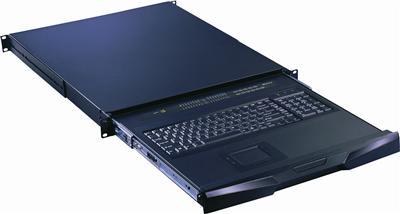
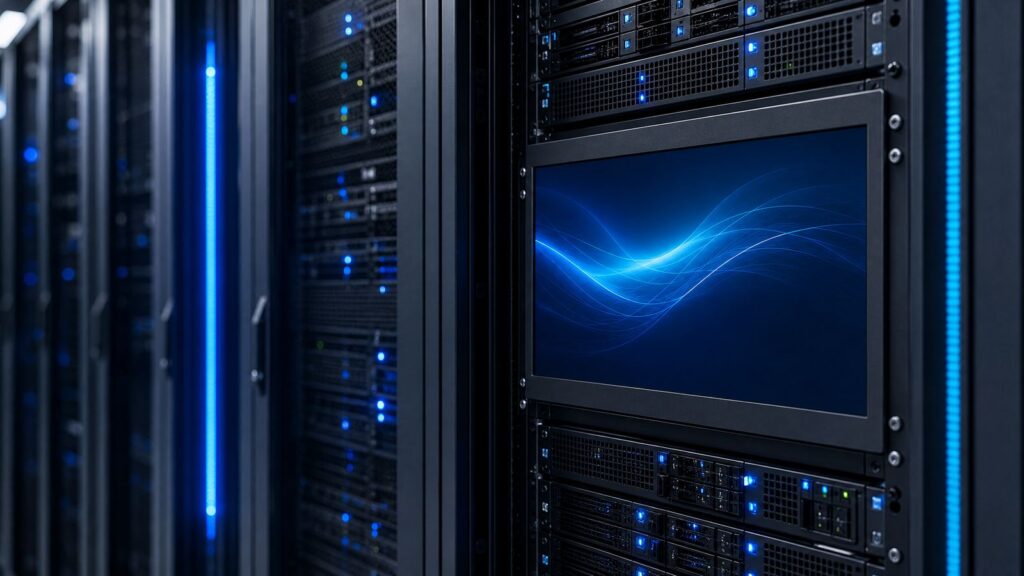
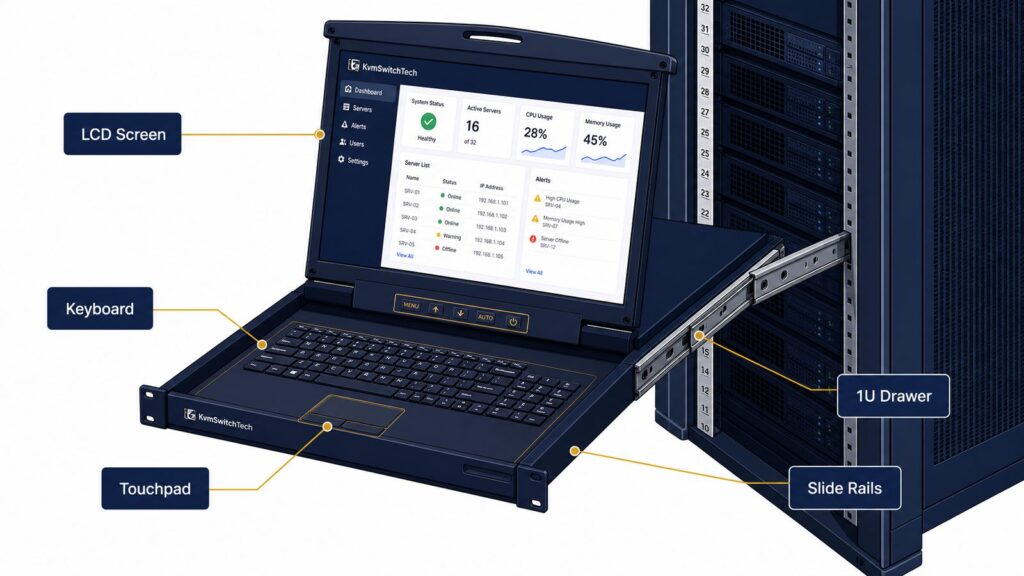
A rackmount monitor is a display engineered to mount inside a 19-inch equipment rack instead of sitting on a desk. The screen, and often a keyboard and touchpad, live in a thin metal drawer on ball-bearing slide rails. Pull the drawer out, flip up the LCD, and you have a local terminal. Push it back in and you recover the aisle space and protect the hardware behind a lockable front panel.
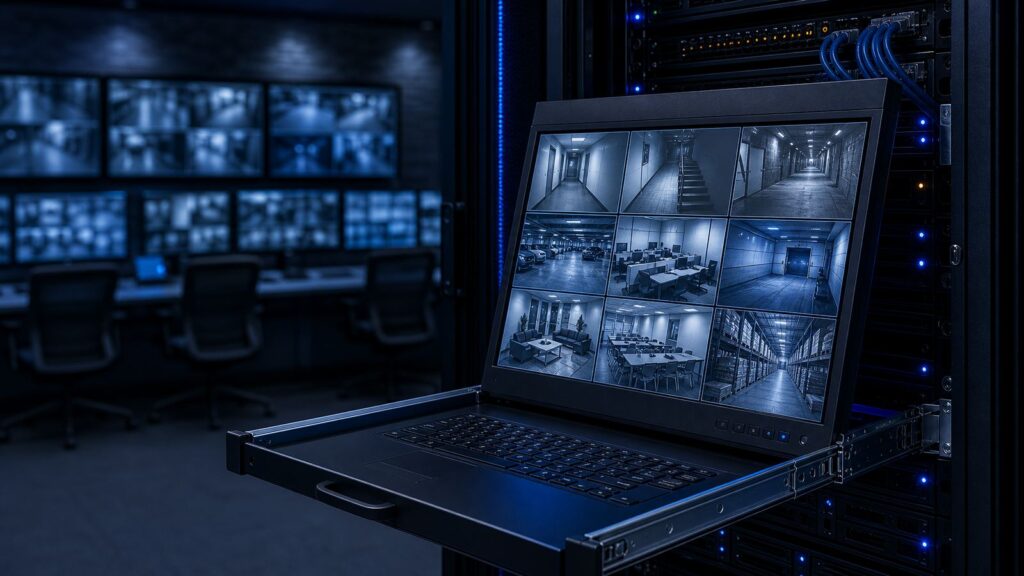
Because it is built for the rack, a rackmount monitor is rugged where a consumer display is not: steel housing, industrial-grade panels rated for continuous duty, and components chosen for 24/7 mission-critical environments. That is why you find them in enterprise server rooms, government facilities, hospitals, control rooms, and broadcast operations.
Rackmount Monitor vs. KVM Console vs. IP KVM
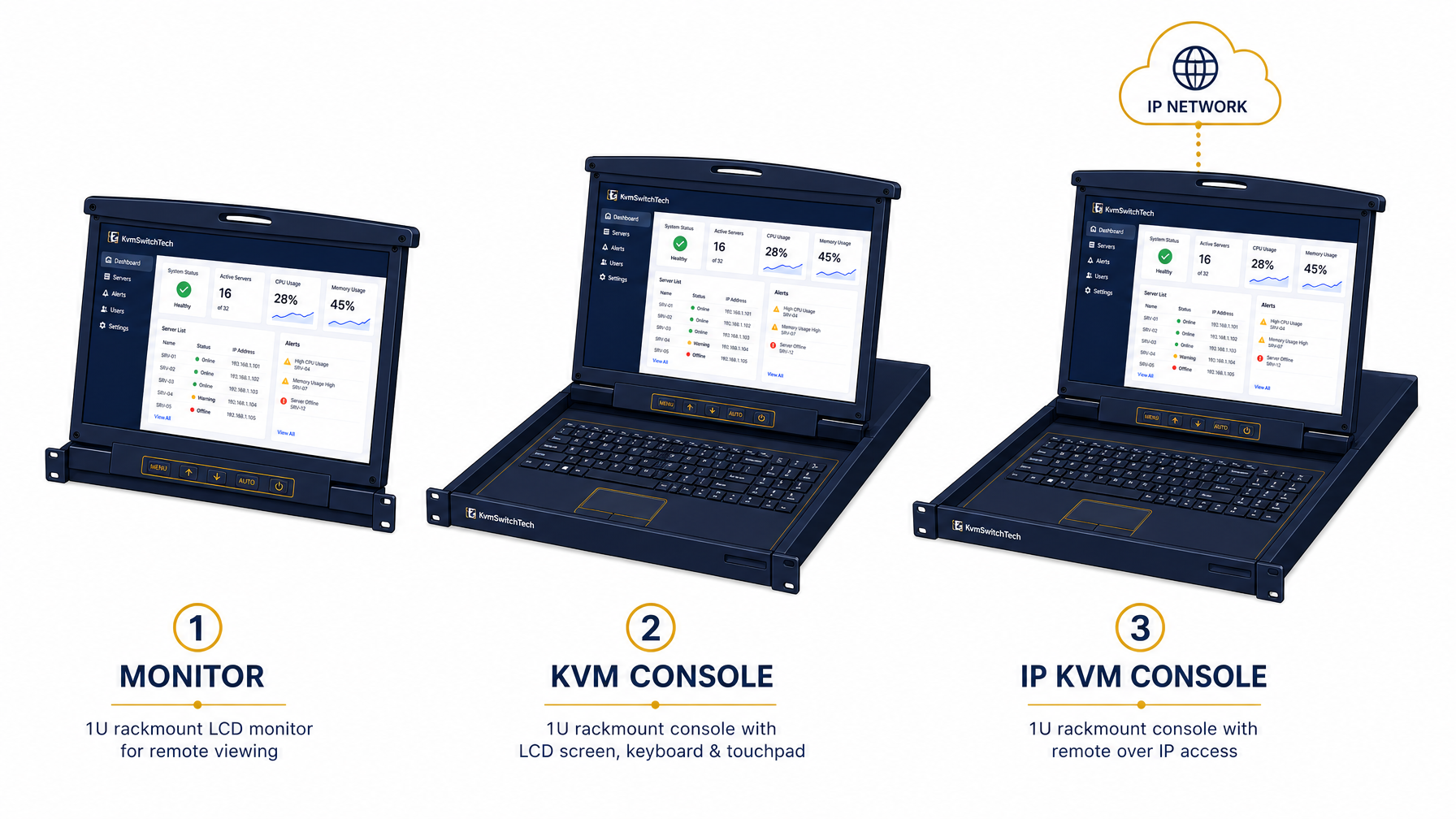
The terms get used interchangeably, but they describe three different levels of capability. Choosing the right one is the single most important decision in this category.
| Feature | Rackmount Monitor | Rackmount KVM Console | IP KVM Console |
|---|---|---|---|
| What it includes | LCD screen only | Screen + keyboard + touchpad | Screen + keyboard + touchpad + network module |
| Controls how many servers | One (direct video) | Up to 8, 16, or 32 via integrated KVM | Up to 32+ locally, plus remote |
| Access location | At the rack | At the rack | At the rack and from anywhere |
| Best for | Single-server or KVM-fed display | Multi-server local management | Remote/lights-out data centers |
| Rack space | 1U typical | 1U–2U | 1U–2U |
- A rackmount monitor is just the screen. Pair it with a separate KVM switch and it becomes the display for many servers.
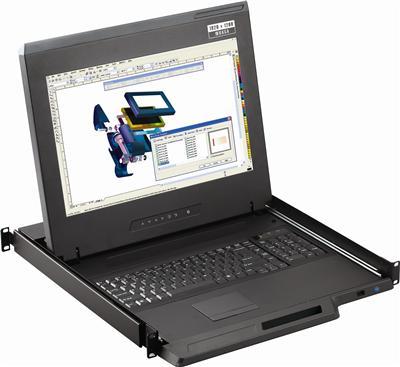
- A rackmount KVM console (also called a rackmount keyboard drawer or LCD KVM drawer) bundles the screen, keyboard, and touchpad with an integrated KVM switch so you control multiple servers from one 1U unit.
- An IP KVM console adds a network module for BIOS-level remote access over your LAN or a secure VPN, so you can manage servers from another building or another state.
If you are still weighing a drawer against a legacy setup, our companion article, Rackmount Monitor vs. Traditional Console Setup, breaks down the tradeoffs in detail.
1U vs. 2U: Which Rack Height Do You Need?
Rack space is measured in units (U), where 1U equals 1.75 inches of vertical height.
- 1U rackmount monitors are the most popular choice. They combine a folding screen with a keyboard and touchpad in a single 1.75-inch slot, maximizing the space left for servers.
- 2U rackmount monitors typically carry larger screens (19 inches and up) or a full-size keyboard with a separate touchpad tray, and are common where operators spend extended time at the rack.
For most deployments, a 1U rackmount screen is the right default. Step up to 2U only when screen size or keyboard ergonomics justify the extra rack space.
What to Consider Before You Buy
When you are choosing a monitor for a server rack, these are the specifications that actually determine fit and performance:
- Screen size: 17-inch and 19-inch panels are the most common. Larger screens improve readability in dense NOC environments; smaller panels conserve space in edge racks.
- Native resolution: Match the panel's native resolution to the output your servers and KVM produce. A mismatch forces scaling and softens text, which matters when you are reading logs at the rack.
- Video input types: Units are available with VGA, DVI, HDMI, and DisplayPort. Confirm the input matches your servers or KVM switch, and budget for adapters only when unavoidable.
- KVM capability: If you need to control more than one server, choose a console with an integrated KVM switch (8, 16, or 32 ports) rather than a monitor alone.
- Remote access: IP KVM models allow control from anywhere over the network. Essential for lights-out or geographically distributed sites.
- Rack depth compatibility: Measure your rack's mounting-rail depth. Drawers ship with adjustable rails, but every model has a minimum and maximum depth range it can span.
- Durability and security: Look for steel housing, lockable drawers, and industrial-grade panels rated for continuous operation.
A quick note on deployment: getting the details right, native resolution, video format, cable distance, USB support, rack depth, and power environment, is what separates a clean install from a return. If you are unsure, our team will spec it with you before you order.
Why IT Teams Standardize on Rackmount Monitors
- Space efficiency: A 1U drawer replaces a desk monitor, keyboard, and mouse, and removes the need to wheel a crash cart into the room.
- Faster response: Local access is always available at the rack, even when the network or OS is down and remote tools cannot reach the box.
- Reliability: Rugged construction is built for the temperature, dust, and duty cycle of a working data center.
- Clean cable management: Everything terminates inside the rack, so aisles stay clear and airflow stays predictable.
For a real-world look at the payoff, see How a Rackmount Monitor Transformed Data Center Efficiency.
Explore Rackmount Monitors and Consoles
Browse the full lineup of rackmount monitors and console drawers, or compare rackmount LCD keyboard drawers for integrated screen-and-keyboard units. KVMSwitchTech stocks 1U and 2U models with VGA, DVI, HDMI, and DisplayPort inputs, standalone or with integrated KVM switching for up to 32 servers.
Need help choosing? Our KVM specialists will match a rackmount monitor or console to your rack depth, video format, and server count before you buy. Call (216) 798-7530 for pre-sales guidance.
Rackmount Monitor FAQ
What is the difference between a rackmount monitor and a rackmount console?
A rackmount monitor is just the screen. A rackmount console includes the monitor plus an integrated keyboard and touchpad, and often a built-in KVM switch, giving you a complete control interface in a single 1U or 2U drawer.
Can one rackmount monitor control multiple servers?
Yes. With a KVM-enabled console you can control multiple servers from one device. KVMSwitchTech offers models that support 8, 16, or up to 32 systems from a single drawer.
What size is a rackmount monitor?
Screen sizes are commonly 17 or 19 inches. The drawer height is measured in rack units: 1U (1.75 inches) is standard for space-saving installs, while 2U units accommodate larger screens or full-size keyboards.
Are rackmount monitors hard to install?
No. Units ship with adjustable slide rails and mounting hardware and install into any standard 19-inch rack, typically in a few minutes without special tools. Confirm your rack's mounting depth against the drawer's supported range before ordering.
Do rackmount monitors offer remote access?
Yes. IP KVM console models provide BIOS-level remote access over a web browser or secure VPN, so you can manage servers from anywhere, in addition to local access at the rack.
What video inputs do rackmount monitors support?
Depending on the model, rackmount monitors support VGA, DVI, HDMI, and DisplayPort. Match the input to your servers or KVM switch to avoid scaling and adapter issues.
Final Thoughts
A rackmount monitor is the most practical way to bring reliable, space-efficient local access to a server rack, and with an integrated KVM or IP module, it scales to multi-server and remote management as well. Decide between a monitor, a console, and an IP KVM based on how many servers you manage and whether you need remote access, then confirm screen size, video input, and rack depth.
Ready to spec one? Browse rackmount monitors and consoles or call (216) 798-7530 to talk it through with our team.